Batch Operations - Batch Posting: Support for New Functionalities
Stay is enhanced to allow users to post multiple charges to accounts through the Batch Posting tab in the Batch Operations screen. Access to this screen is restricted to selected users only. Users are allowed to select multiple reservations on the Batch Posting tab and post charges for multiple items of different amounts for each reservation.
Feature Setting
The following new feature setting has been added to enable users to post multiple charges to reservations:
-
Name: Multi Post Charge
-
Value: Must be enabled
-
Comments: License is not required
Permission
The following new permission has been added to enable users to post multiple charges to reservations:
-
StayMultiBatchPostings
This permission is provided to users with access to the following roles by default:
-
System Administrator
-
Stay Hotel Manager
-
Department Manager
-
GSA
-
Stay Front Desk
-
Stay Hotel Supervisor
-
GSA Supervisor
-
Stay Accounting
-
Stay Night Audit
-
Account Receivable Manager
Restricting Access to Batch Posting Tab
Access to the Batch Posting tab in the Batch Operations screen is restricted only to users who only require access to post charges to accounts and not to the other screens in Stay. Users with restricted access can perform the following operations on the Batch Posting tab: Posting charges, posting credits, posting multi charges, searching for a record, sorting, and filtering records.
The following permissions are provided to users to provide them with restricted access and enable them to perform various operations on the Batch Posting tab:
-
StayMultiBatchPostings
-
BatchPostCharges
-
BatchPostCredits
-
ForceChargeAcceptance
-
ReadAccounts
-
ReadFeatureToggles
-
ReadGuestProfiles
-
ReadHousekeeping
-
ReadPropertyConfig
-
ReadReports
-
ReadReservations
-
Reservations
-
Stay_limitedBatchOperations
-
StayMultiBatchPostings
-
DateRoll
-
Platform_computedTax
-
Platform_readTaxClass
When a user with restricted access logs in, only the Batch Posting tab will be displayed and accessible to the user. All the other screens will not be available.

Using the Multi Post Charge Feature
The Multi Post Charge button on the Batch Posting tab allows users to select multiple reservations and post charges for multiple items of different amounts for each reservation. The following steps are involved in posting the charges:
-
Selection of Reservations
-
Add Charge
-
Review Charges
-
Manage Reservations
-
Summary
Selection of Reservations
Users can select reservations across multiple pages on the Batch Posting tab by enabling the checkbox provided for the reservations. If required, users can apply filter options to filter reservations that match the required criteria. Users can also search for reservations using the confirmation number, guest name, group, company, room type, and room number, and select them. Once the required reservations are selected, users can click the Multi Post Charge button. When clicked, the Add Charge screen appears.
Users can also click the button without selecting the reservations. The reservations can be selected later in the Manage Reservations step.
Adding Charges
In the Add Charge screen, users can select the required transaction and inventory items for which charges must be posted to the selected reservations. Users can select the items and enter the charge amount. The Next option on the bottom of the screen is enabled only when at least one item is selected. When clicked, users can proceed to the Review Charges step.
Review Charges
Users can review the selected transaction/inventory items, quantity, and amount. Users can select the posting date, enter a reference number, enable the Display in Guest Correspondence checkbox to display the reference number in folio print/email, enter a comment for the charges to be posted.
The following details are displayed for the selected charges:
-
The transaction/inventory items selected
-
The amount charged per item
-
The quantity of selected items
-
The total amount charged for the selected quantity of items
When users enter a reference no and comments for the charges, they are posted to the selected reservations along with the charges. Users can also remove the items that are not required. The Source and Meal Period can be selected for the transaction/inventory items by expanding the accordion provided for the item. Once the details are reviewed, users can proceed to the next step by clicking on Next option.
Manage Reservations
In this step, users can view/edit the pre-selected reservations. Additionally, users can also add new reservations.
The following details are displayed for the pre-selected reservations:
|
Field |
Description |
|---|---|
|
Guest Name |
|
|
Confirmation |
|
|
Room |
|
|
Item Description |
|
|
Quantity |
|
|
Amount |
|
|
Total |
|
Users can remove an item added to a reservation using the Remove icon present next to the item. A reservation can be removed using the Delete icon present next to the reservation.
In addition to the pre-selected reservations, users can add new reservations in this step. For the new reservations, the transaction/inventory items chosen in the Add Charge screen are applied with the selected quantity and amount. Users can modify the quantity and amount if required.
Users can search for the reservations to be added using the following fields:
-
Room Number
-
Primary Guest Name
-
Additional Guest Names
-
Reservation Confirmation Number
The search results display the following details for the reservations:
-
Primary guest name
-
Additional guest names separated by a comma if multiple guests are available.
-
Reservation’s arrival and departure dates
-
Reservation confirmation Number
-
Room number
-
For shared reservations
-
Primary guest name of each reservation
-
Additional guest names of each reservation separated by a comma if multiple guests are available.
-
Arrival and departure dates for each reservation
-
Shared reservation indicator
-
Reservation confirmation number of each reservation.
-
Room number
-
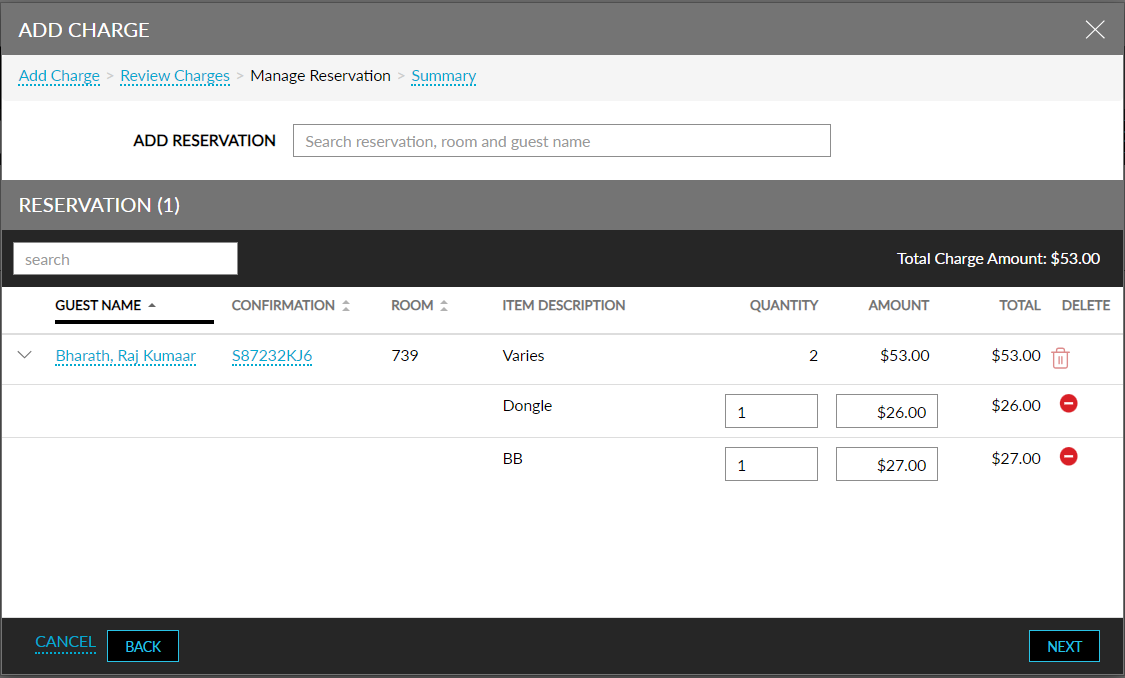
Users can select the required reservations and proceed to the next step by clicking on the Next button.
Summary
This step shows the overview of all the selected reservations along with the charge details. The following details are displayed for the reservations:
-
Total number of Reservations
-
Total Amount
-
Total charge amount to be posted for all the selected reservations
-
Guest Name: Displays the name of the primary guest of the reservation
-
Group: Displays the group name if the reservation is a group reservation
-
Company: Displays the company name if the reservation is associated with a company
-
Room: Displays the room number assigned to the reservation
-
Routing Rules: Displays the following values.
-
Yes: If routing rules are associated with the reservation.
-
No: If routing rules are not associated with the reservation.
-
-
Item Description: All transaction/inventory items selected separated by a comma if multiple items are available.
-
Total Quantity: Total quantity of all the items selected for reservation.
-
Total Amount: Total amount to be posted for the reservation.
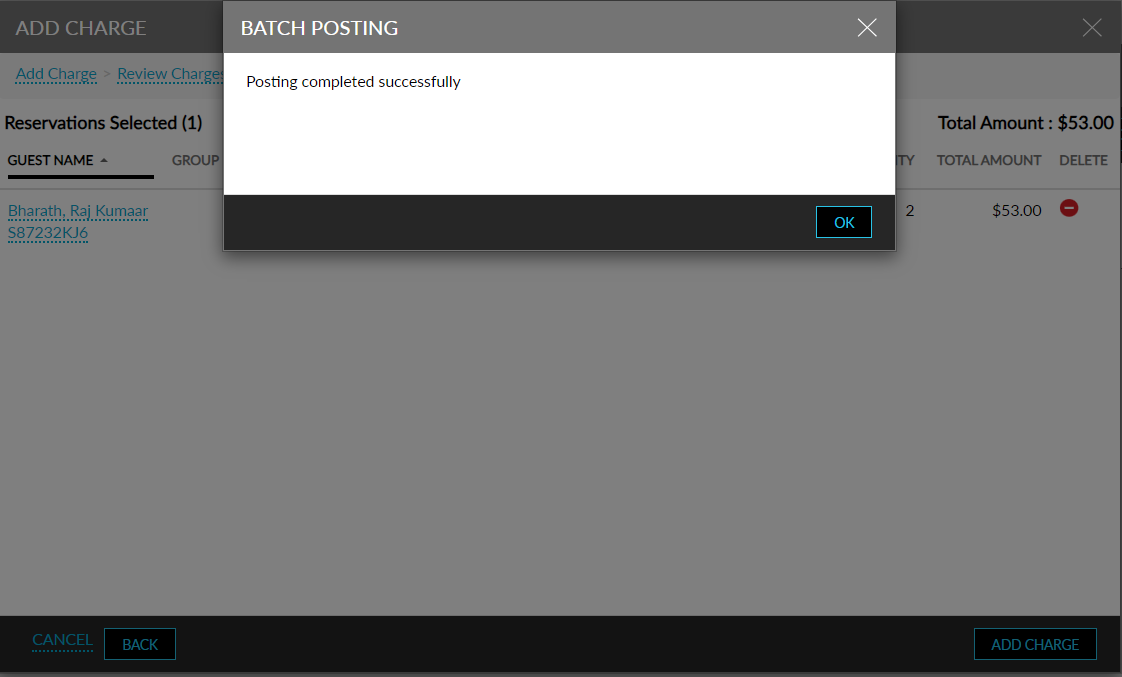
Users can delete any reservation by clicking on the Delete icon present next to the reservation. Users can click the Post Charge button to post charges to the selected reservations. When clicked, a progress indicator appears that displays the count of the completed reservations against the total reservations selected. The following message is displayed when charges are posted to the reservations successfully: Posting has been completed successfully.
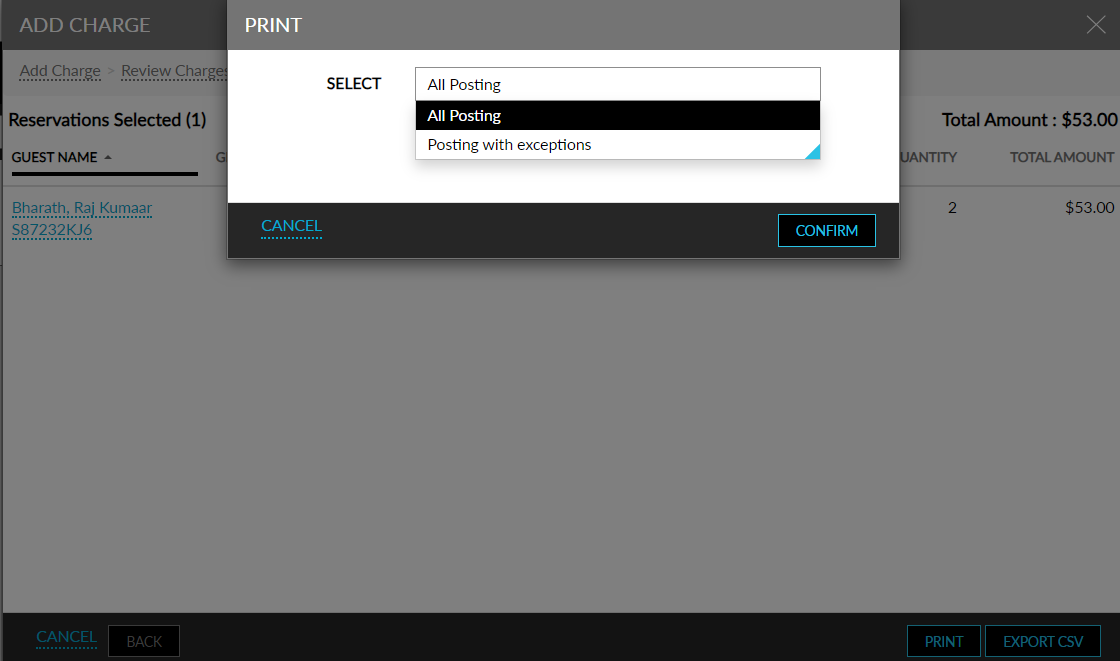
Users can print or export the results of the batch posting by clicking on the Print or the Export icons. When clicked, the Print/Export screen appears that allows users to choose from the following options:
-
All Postings: When selected, all reservations are printed/exported.
-
Postings with Exceptions Only: When selected, only the records with exceptions are printed/exported.
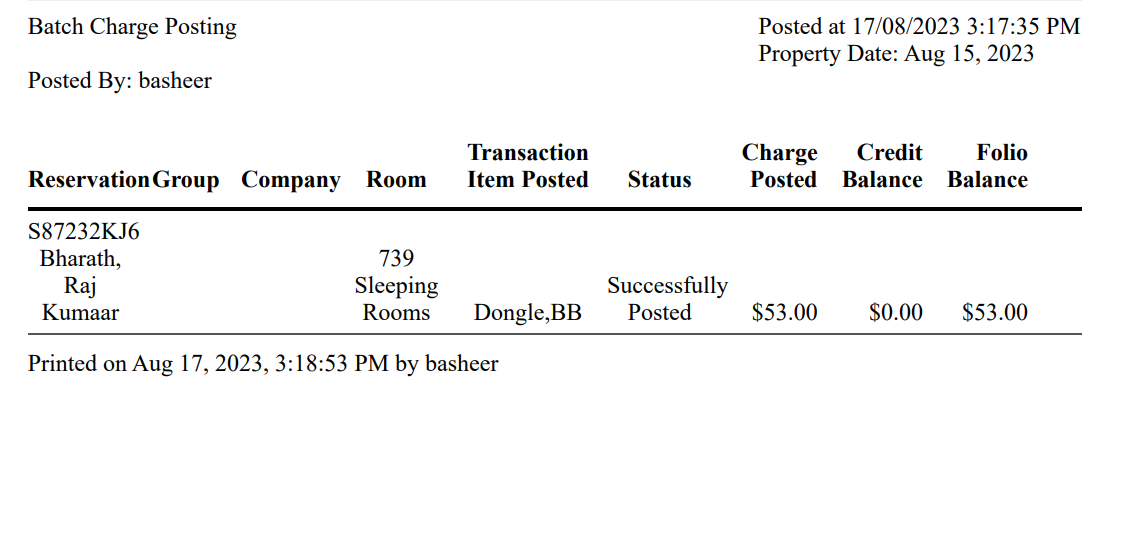
The following details are displayed when the results are printed or exported as a CSV file:
-
Confirmation: Reservation confirmation number of the reservation for which the charge is posted.
-
Last Name: Last name of the primary guest of the reservation.
-
First Name: First name of the primary guest of the reservation.
-
Group: Group name if the reservation is a group reservation.
-
Company: Company name if the reservation is associated with the reservation.
-
Room: Room number associated with the reservation.
-
Building: The name of the building in which the room is located.
-
Charge posted: Total charge amount posted to the reservation.
-
Status: Status of the charge posting.
-
User: Username of the user who posted the charge.
-
Date & Time: The date and time when the charge was posted.
-
Transaction Item Posted: Transaction items posted for the reservation separated by a comma if multiple items are posted.
-
Current Available Credit Balance: The available credit of the reservation after the charges are posted to the reservation.
-
Current Folio Balance: The current guest folio balance of the reservation after the charges are posted to the reservation.
Batch Operations Logs
Logs are created in the Batch Operations Logs screen to track multiple charges posted to reservations. Users can generate logs by selecting the Multi Post Charge option from the Action drop-down list. The following details are displayed in the Batch Operations Logs columns:
|
Field |
Description |
|---|---|
|
Date & Time |
Displays the date and time when a user posted multiple charges to reservations. |
|
Type |
Displayed as Batch Posting when users post multiple charges to reservations. |
|
Action |
Displayed as Multi Post Charge when users post multiple charges to reservations. |
|
Username |
Displays the username of the user who posted multiple charges. |
|
Confirmation |
Displays the confirmation ID of the reservations for which multiple charges were posted. |
|
Guest Name |
Displays the name of the primary guest associated with the reservations for which multiple charges were posted. |
|
Arrival |
Displays the arrival date of the reservation for which multiple charges were posted. |
|
Departure |
Displays the departure date of the reservation for which multiple charges were posted. |
|
Status |
Displays the following status:
|
|
Exception Details |
Displays the reason why the multiple charges were not posted to the reservations. |
To support this enhancement, the following changes have been made:
-
A new button, Multi Post Charge, has been added to the Batch Posting tab on the Batch Operations screen that allows users to post multiple charges to multiple reservations with different amounts.
-
A new option, Multi Post Charge, has been added to the Action drop-down list on the Batch Operations Logs screen to track the reservations for which multi charges were posted.